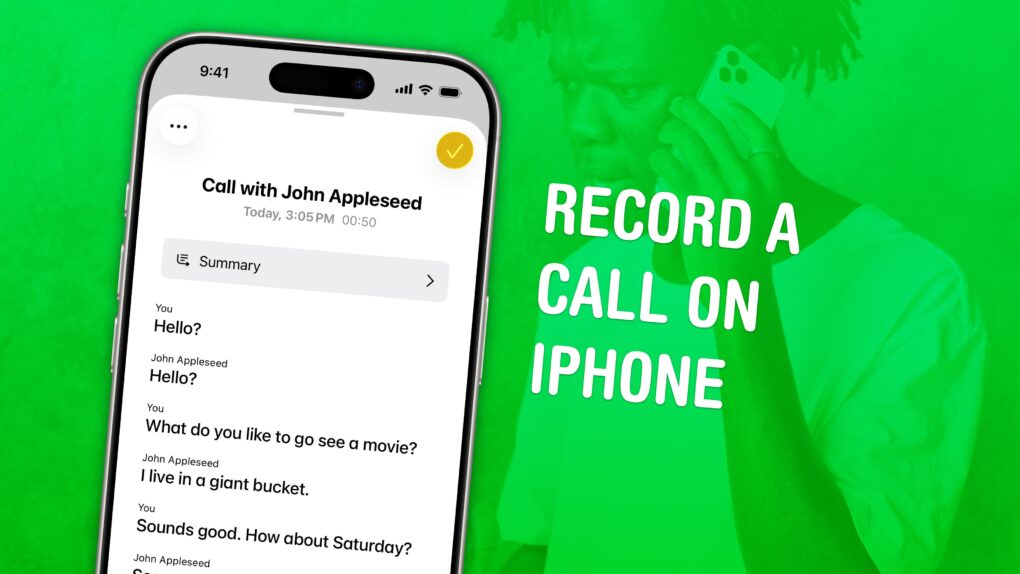
You can record a phone call on your iPhone for future reference using a built-in tool. This feature is a great way to refer back to a previous conversation. Who said what? What date did they say? What exactly did you agree to?
If your device supports Apple Intelligence, you’ll get transcriptions of the phone calls, too. They’ll go in a Call Recordings folder in the Notes app.
If you used a shady call recording app before, you can bid it adieu. There’s a convenient button built right into the Phone app. Here’s how it all works.
How to record a call on iPhone
Thanks to privacy concerns and a patchwork of state laws, Apple didn’t allow recording phone calls on iPhone for many years after the first device shipped in 2007. In most U.S. states and under federal law, recording a phone call requires the consent of at least one party to the call. Otherwise, it could be considered illegal eavesdropping or wiretapping. About 13 states require the consent of everyone on the call.
Prior to this, Apple did not allow direct recording of iPhone calls. The company still blocks any third-party apps that try to do so. The AI-powered transcription app, Otter.ai, for example, is disabled by iOS from recording when the phone microphone is active.
Some third-party apps can record calls, but not directly. To get around Apple’s restrictions, these apps use workarounds like dialing into a call as a third party. Most are restricted to only U.S. numbers.
It’s not clear why Apple suddenly changed its mind about recording iPhone calls, but it’s a welcome turnabout.
Table of contents: Record a phone call on iPhone
- Use iPhone to record a phone call
- Take notes on the call
- Where to find your call transcriptions
- More Phone and Messages features
Use iPhone to record a phone call
Screenshot: D. Griffin Jones/Cult of Mac
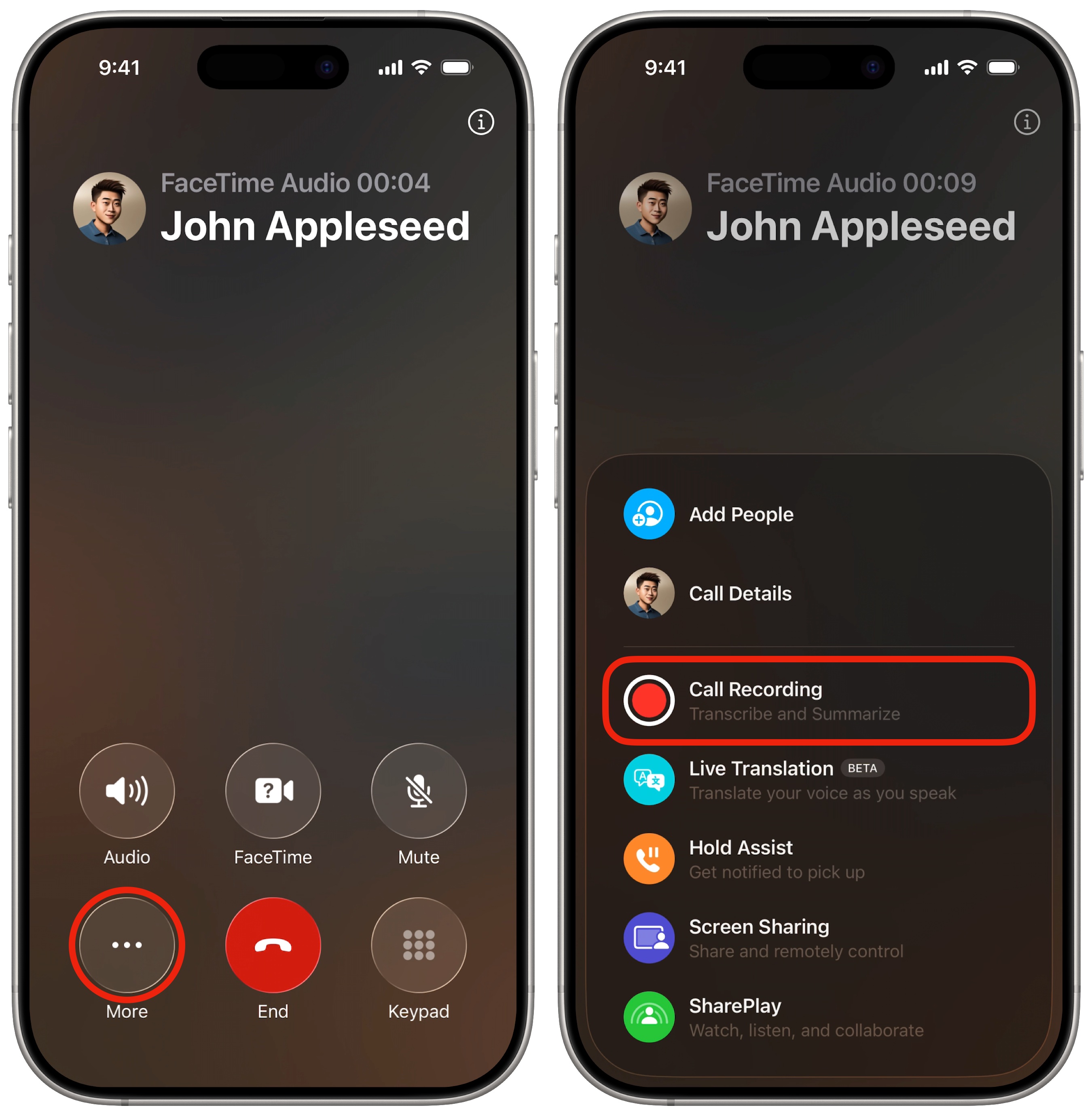
Ready to record a call on your iPhone? From a live phone call or a FaceTime audio call, tap the More button (⋯) in the lower left corner of the screen. Then tap Call Recording. You can start a recording at any time during a call. You’ll see an explanatory screen explaining how this works the first time this happens.
Both people will hear a brief countdown, and the message “This call will be recorded,” followed by a tone.
Afterward, you can find your call recordings in Notes, in the Call Recordings folder.
Take notes on the call
This feature generates a new note for every recorded iPhone call. Tap on the recording toolbar to switch to the Notes app. It’ll take you directly to the note for the phone call currently in progress.
This comes in handy if you need a scratchpad to take down numbers, write about appointments, take meeting notes or remember something important that somebody said.
Where to find your call transcriptions
Screenshot: D. Griffin Jones/Cult of Mac
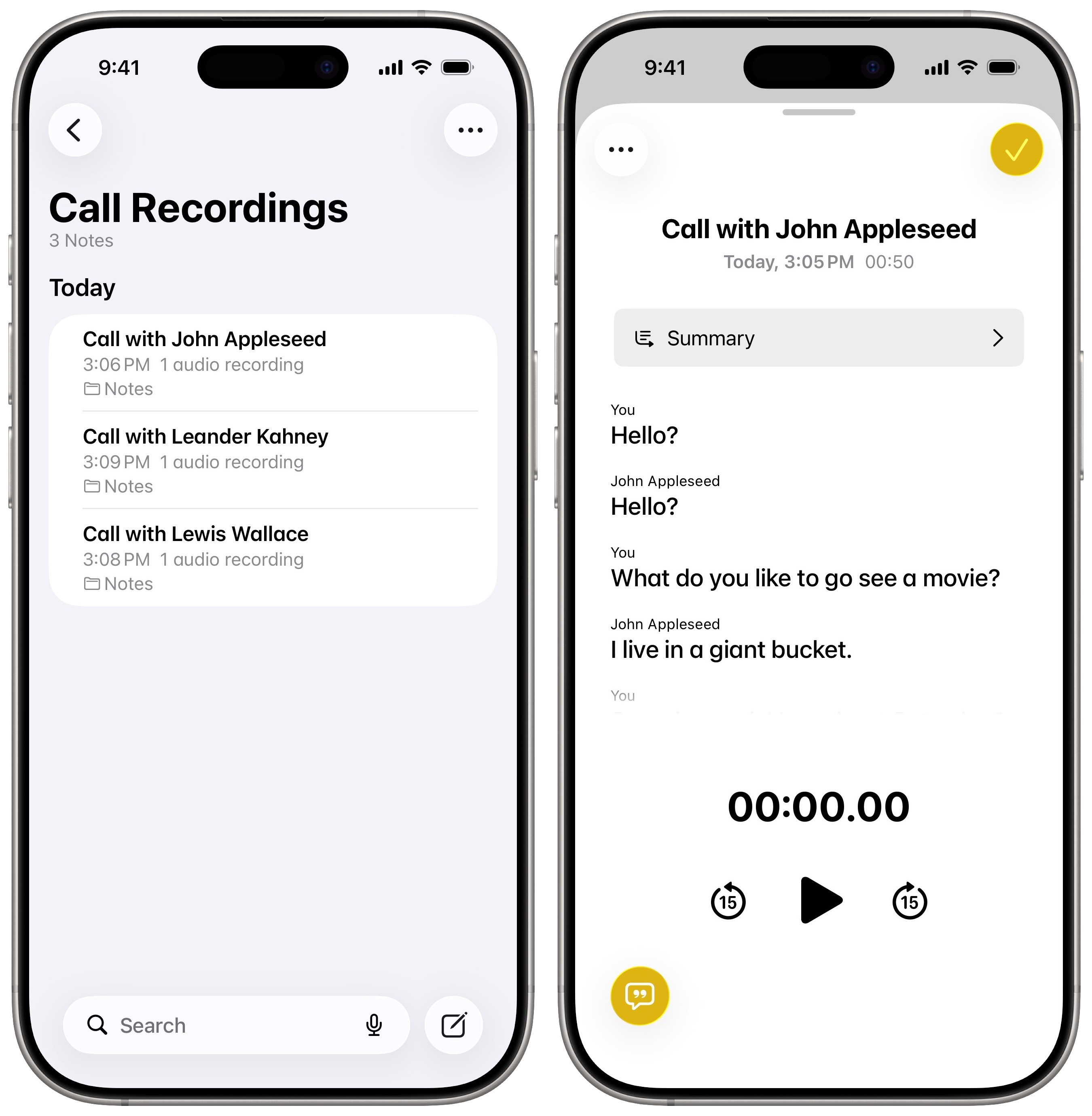
To see your recorded iPhone calls, open Notes and go to the Call Recordings folder. The audio recording will appear right at the top, above your notes. Tap on it, and you’ll see an interface very similar to the Voice Memos app — with a Show Transcript and Summary button in the bottom left.
Different speakers on the call will be labeled. Just like in Apple Music, you can tap on a sentence to hear that part of the recording. You can also tap Summary at the top to get an Apple Intelligence-generated summary. Tap Done or swipe down to close the recording.
Your iPhone will generate the transcriptions pretty quickly. However, they’re not terribly accurate. Even small Whisper models achieve much better results, especially when it comes to capitalizing proper nouns. Nonetheless, your iPhone call recordings can serve as a handy reference if you need to recall what you said during a call.
More Phone and Messages features
- Set up your Contact Poster to make a beautiful custom call screen for your contact.
- Live Voicemail lets you see a transcription of a voicemail message as it’s being recorded — and you can pick up at any point, if the call turns out to be important.
- T9 dialing lets you look up a contact from the keypad by typing in the letters associated with each number — like it’s 2004 again.
- Edit or unsend messages, soon after sending them, if you make a mistake.
- Schedule texts to send later on iPhone to make sure you never forget to send a reminder, birthday greeting or early morning message for someone in a different time zone. You can schedule a whole slew of texts up to a week in advance, with links, photos, attachments and more.
- iMessage effects can add extra meaning, emotion and fun to your texting. You can add bold, italics, underline and
strikethroughtext, just like a formatted document, and even choose from a bunch of cool, animated effects.
We originally published this article on how to record a phone call on iPhone on October 23, 2024. We updated it with the latest information on April 27, 2026.

D. Griffin Jones is a writer, podcaster and video producer for Cult of Mac. Griffin has been a passionate computer enthusiast since 2002, when he got his first PC — but since getting a Mac in 2008, he hasn’t turned back. His skills in graphic and web design, along with video and podcast editing, are self-taught over 20+ years. Griffin has a bachelor’s degree in computer science and has written several (unpublished) apps for Mac and iOS. His collection of old computers is made up of 40+ desktops, laptops, PDAs and devices, dating back to the early ’80s. He brings all of these creative and technical skills, along with a deep knowledge of Apple history, into his work for Cult of Mac.

